CTES:
Step-By-Step Downloading Instructions:
The following descriptions provide a step-by-step procedure for autopay vendors
to access and download their copy of the "Detailed Payment Report" files.
This procedure assumes that the connection to the Internet has already been established
and the browser is ready to accept input of BGE's vendor website server address.
Although the screen prints provided in this guide reflect the use of the Microsoft
Internet Explorer browser, the procedure applies to usage of any other industry-standard
browser including the Netscape browser.
In the "Address" field of the browser, type in the address of the BGE vendor website.
http://vendor.bge.com
Upon input of the address (as above) and upon pressing the key, a window similar
to the one in the following illustration, should appear.
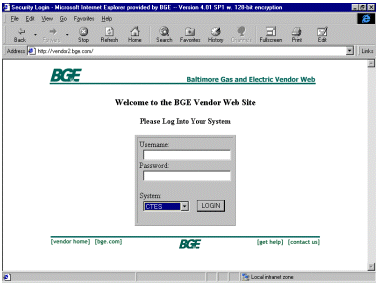
Input the BGE provided user name and password in the appropriate spaces.
Make sure they are entered in lowercase. The chosen "System" should be "CTES".
Upon input of the correct user name and password, the user will be permitted to access
the exclusive "space" which contains the vendor's copy of the "Detailed Payment Report"
for the payment period. The illustration below indicates the "look" of the window in the
event our vendor "Adecco" was accessing the BGE webserver to view and/or download their
copy of the "Detailed Payment Report".
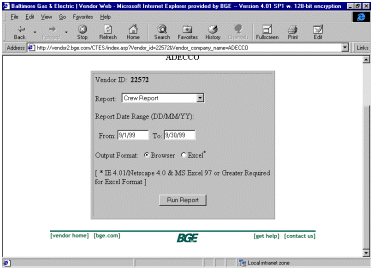
Report Type: Select the report type for the detailed information for your company by
clicking on the down arrow at the end of the "Report Type" field. (The BGE buyer or
contract administrator will advise which report(s) you will need.
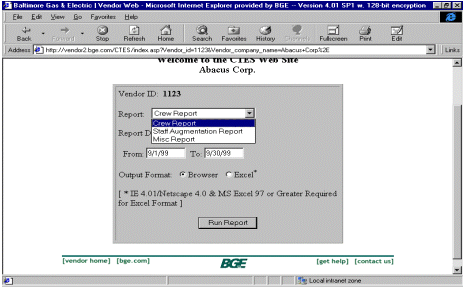
NOTE: The three (3) types of reports available are Crew Report, Staff Augmentation
Report, and Misc Report.
Report Date Range: Enter the dates for the period you want to review. The date format is MM/DD/YY.
(The default date range is for the previous month.)
Output Format:
- Click on the Browser button to view detailed data in your browser.
- Click on the Excel button to view and/or save to your Excel files
Click on Run Report to display the data.
The details will now show for each PO for the time period specified.
After reviewing and/or saving the report to your Excel files, you can return to the Report
Request screen and enter another time period and/or select another report type.
To Save the data to your Excel files:
Click on "File", "Save As" and specify the destination location and filename for the report.
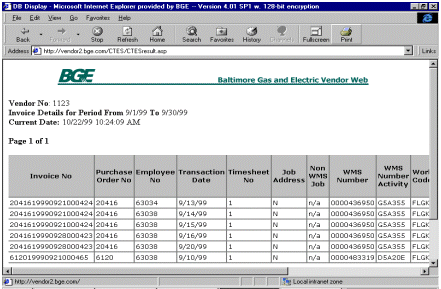
Click on File, Save As to save to your Excel directory.
|